Ringy Auto Appointments
Books a Ringy follow-up for every new lead, and for leads whose texts USHA temporarily blocked for do-not-call, automatically, from your own Ringy tab.
What's new in v0.2.1
New "Leads from" boxes: book new leads, leads whose texts were "temporarily blocked by USHA due to do-not-call", or both in one run. Those leads get a follow-up and the "Auto Follow-up" tag automatically, replacing the manual select-all / disposition / filter routine. Only one Ringy tab books at a time (no double bookings with several tabs open), every tab shows the live Auto status, and settings stay in sync across tabs.
What it does
The routine you do by hand today, done for you in the background.
Finds the leads
Schedules the follow-up
Tags and checks
Install (about 2 minutes)
One time only. After this, updates are announced right inside Ringy.
Download and unzip
Download the zip, then double-click it to unzip. Move the folder somewhere you'll keep it, like
Documents. Chrome runs the extension from that folder, so don't delete it.Open Chrome's extensions page and turn on Developer mode
Type
chrome://extensionsin the address bar and press Enter. Turn on Developer mode in the top right corner.ExtensionsDeveloper modeClick "Load unpacked" and pick the folder
Choose the unzipped folder (the one that contains
manifest.json).Load unpacked Pack extensionRefresh Ringy
Open or refresh app.ringy.com. A purple Auto Appts button appears in the bottom right corner.
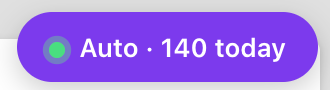
The button also shows live status (more below).
First run: set it up and test
Open the panel
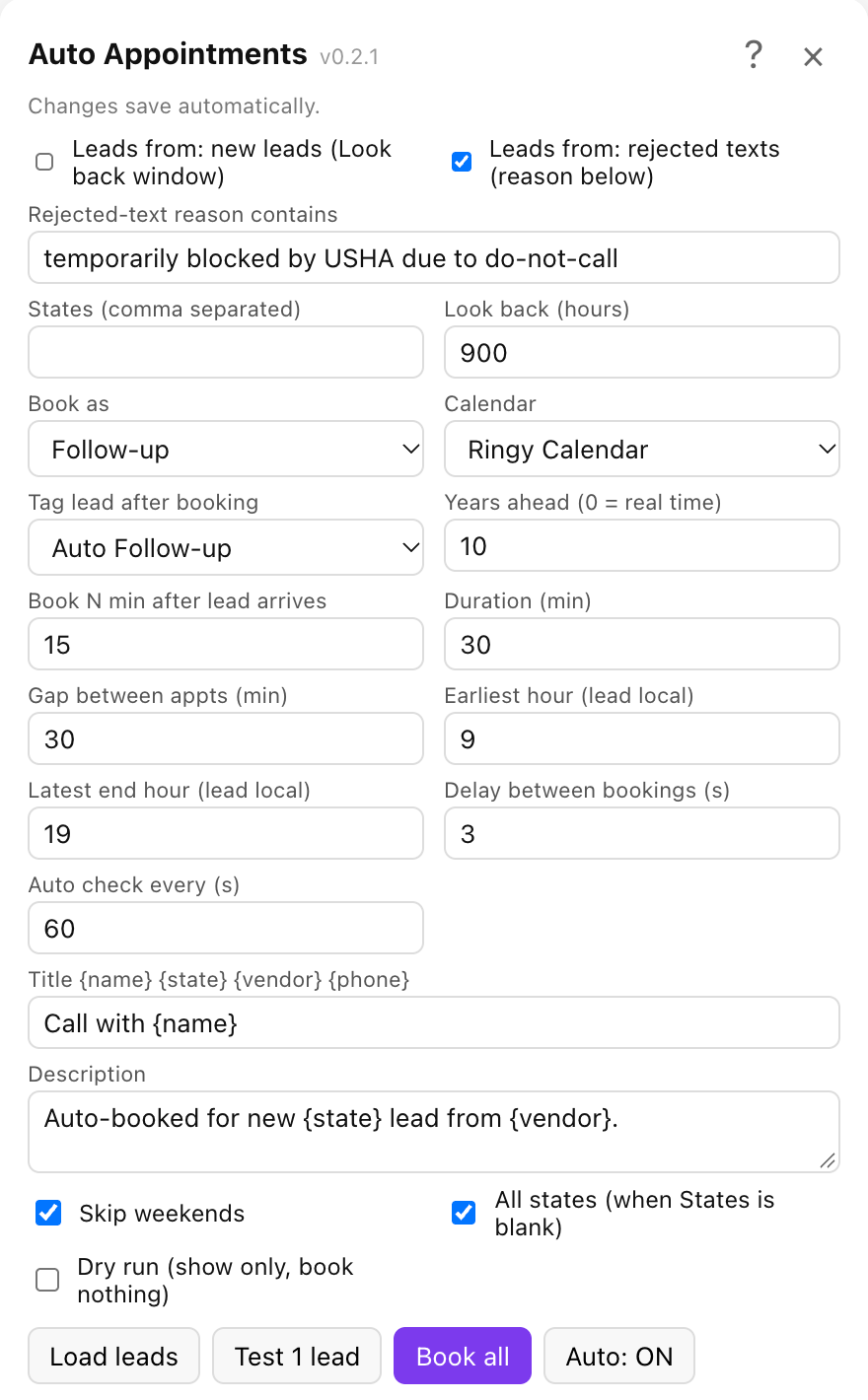
Click the purple button. Close it with the × or the button again. Settings save automatically; hover any setting or click ? for an explanation.
Choose what to book
Leads from: tick new leads, rejected texts (the temporary USHA do-not-call blocks), or both. Set States (e.g.
FL), Calendar, and keep Book as: Follow-up and Tag: Auto Follow-up.Preview with "Load leads"
Lists every matching lead and the follow-up time it would get. Books nothing.
Run "Test 1 lead"
Books exactly one real follow-up and checks it. Book all and Auto unlock after it passes.
Go live
Untick Dry run. Then click Book all for the backlog, or Auto to keep booking new leads every minute. Both ask for a second click that shows how many leads will be booked.
Reading the purple button
With the panel closed, the button tells you what Auto is doing. Hover it for the last and next check time.
Keep Auto running
Auto works with the panel closed and while you work leads, including in other Ringy tabs. Only one tab books at a time, so nothing is booked twice.
Updating
When a new version is out, the button gets a small green dot and the panel shows:
- Download the new zip and unzip it over the same folder (replace the files).
- In
chrome://extensions, click the reload arrow on the card.ARingy Auto Appointments
↻ - Refresh Ringy. Your settings are kept.
Questions
Does it ever text, email or call my leads?
No. Every follow-up is saved with confirmation texts, emails, reminders and automations turned off. The tag it adds has no automation attached.
Why 10 years out?
That's the default for holding leads. Change Years ahead to 0 to book a real call time instead (within your business hours in the lead's time zone).
Which rejected texts does it use?
Only texts whose reason contains "temporarily blocked by USHA due to do-not-call". Permanent blocks, "blocked by USHA server", carrier and landline rejections are skipped. These leads are on do-not-call lists: the follow-up only holds the lead, don't text or call them from it.
The purple button doesn't show up.
Refresh app.ringy.com. In chrome://extensions, check the extension is turned on and Developer mode is still on. If you moved or deleted the folder, load it again.
"Book all" and "Auto" are greyed out.
Run Test 1 lead once in that browser. They unlock when the test booking checks out.
It booked fewer leads than I expected.
It skips leads that already have a follow-up or appointment, blocked and sold leads, and leads outside your States. Load leads shows each lead's status. For new leads, raise Look back to include older ones.
Chrome says "Disable developer mode extensions".
Chrome shows that reminder for any extension loaded this way. Click the X to dismiss it; the extension keeps working.